
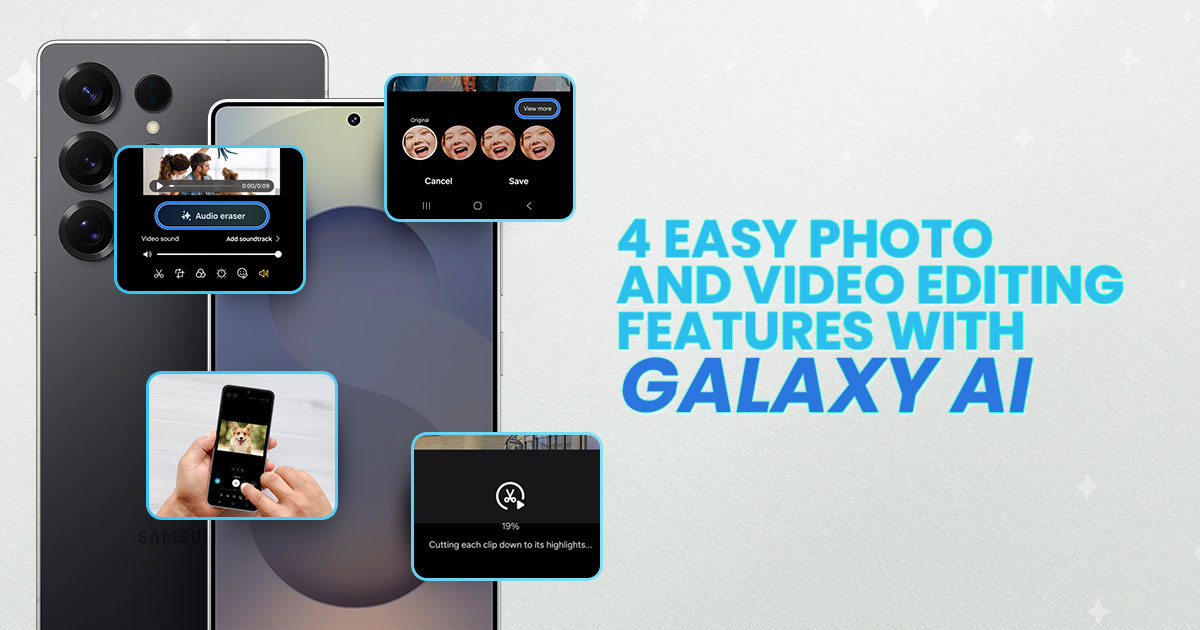
Unlike a dedicated camera, smartphones have many other functions. Despite that, it's impressive how our phones' cameras have become an integral part of our daily lives. Not only are smartphones easier to use, but they also make it easier for you to take nice photos and videos.
Thanks to Samsung Galaxy AI, there's many AI features that can help. Here are 4 Galaxy AI features Samsung Galaxy S25 series users can rely on to enhance their shots and videos.
#1 Generative Edit
Don't know how to edit photos? That's ok, let the AI do it for you. The Galaxy AI's Generative Edit has unique functions to change your photos. This feature not only allows you to move, resize or delete objects, but it can also fill in any resulting 'gap' to look as natural as possible.

Let's say you're taking a family photo, but suddenly a kid runs across the frame. No problem, just use Generative Edit to 'delete' the impromptu photo-bomber. Using Generative Edit, we successfully removed the people present at an LRT platform and erased their shadows. The resulting photo looked quite natural too, so thumbs up for that.
How to use Generative Edit:
- Go to the Gallery and select the photo to edit
- Tap on the Galaxy AI (stars) icon
- Circle the object or subject you want to erase
- Tap on the eraser icon, followed by 'Generate', and voila!
#2 Best Face
The next one is great if you take plenty of selfies or portrait shots. Samsung calls this feature "Best Face", which does exactly as it says on the tin. When you take a photo with the "Motion Photo" mode enabled, the camera saves multiple frames instead of a single still.
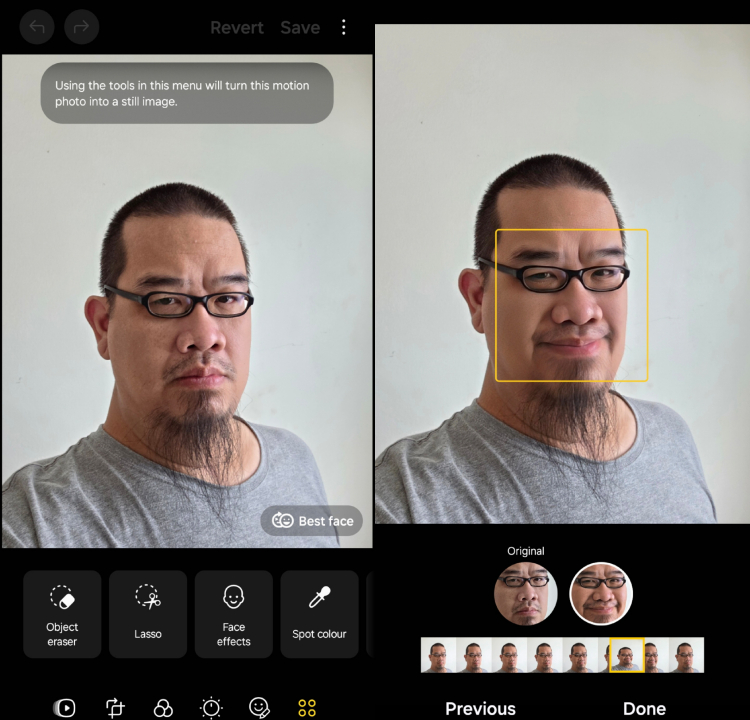
As you can tell, this is handy when taking photos of people. Even if someone looked away, blinked, or smiled at the camera just a tad too slowly, you can still find the best result available. It's most useful for group photos, as it means you won't need as many retakes.
How to use Best Face:
- Select the selfie or group photo in the Gallery
- Swipe up, then tap on "Choose best face"
- Choose the frame you prefer or tap on "View more" for more options
#3 Audio Eraser
Moving on, we have a feature designed to improve videos. As the name suggests, Audio Eraser removes unwanted audio or noise from selected videos. Thanks to Galaxy AI, compatible phones can categorise the types of sound in videos and remove just the audio that you want.
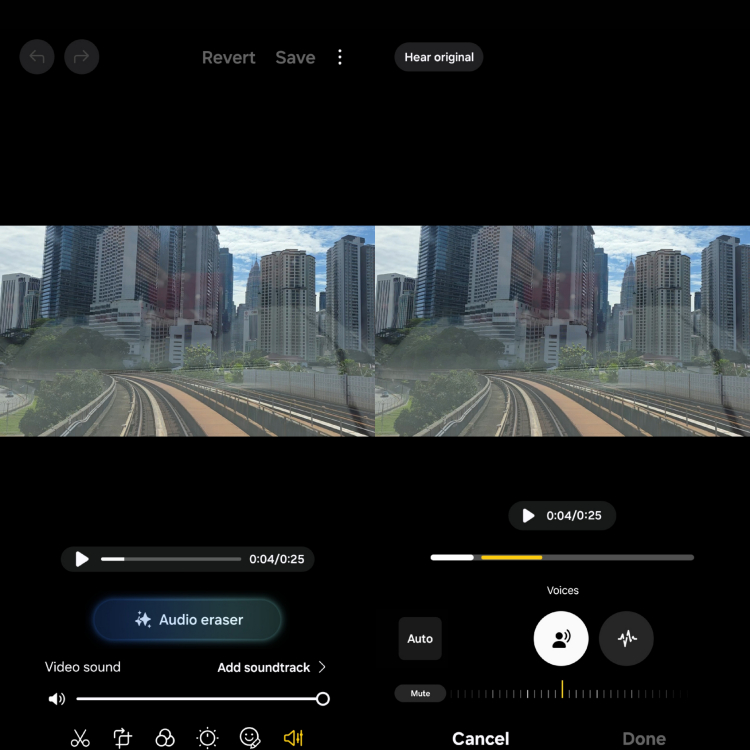
The feature is handy when recording videos in busy places, which often have background noise, such as wind, cars passing by, and other unwanted sounds. Besides videos you record, Audio Eraser works on audio you recorded through the Voice Recorder or Samsung Notes.
How to use Audio Eraser:
- Select the video you want to edit from the Gallery
- Tap on the Galaxy AI icon and wait for the AI to analyse
- Press the "Auto" button, then choose what you want erased (i.e noise)
- Tap on "Save edits" to finish
#4 Auto Trim
Another video-related feature is Auto Trim. This feature trims the important or exciting parts in selected videos, allowing you to combine them into one video. Essentially, it's using AI to detect important elements in the videos, then combining them into one. The results are fast, auto-generated videos, drastically reducing your editing time and effort.
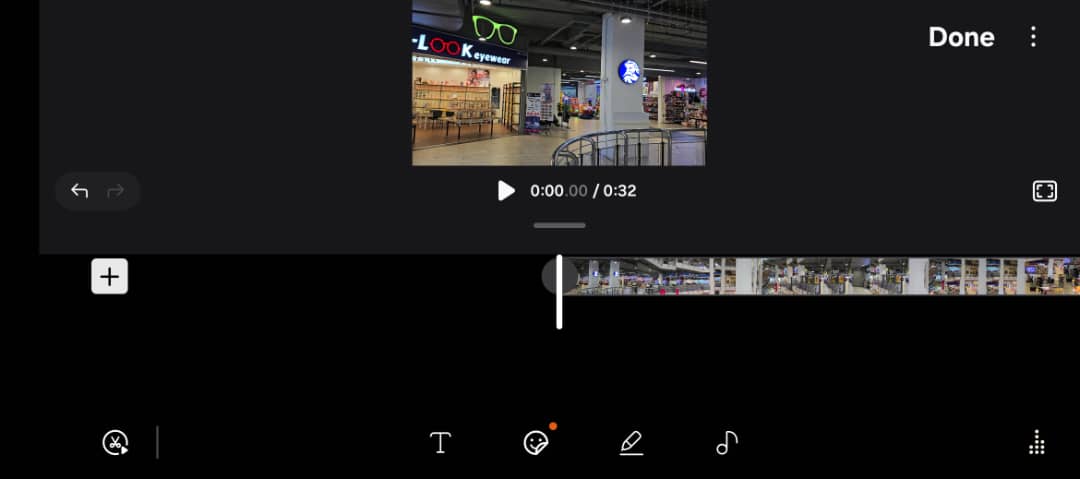

How to use Auto Trim:
- Go to the Gallery, select "Menu" and tap on "Go to Studio"
- Select "Start a new project"
- Select the videos you want to combine, click on Done, and then tap on the Auto Trim (scissors icon on the bottom left)
Samsung Galaxy AI makes everything easier
Ultimately, Samsung Galaxy AI is there to enhance the user experience of Samsung Galaxy S series users. Its features often make our favourite tasks easier and faster, which is what technology is all about. To learn more about Galaxy AI, visit the Samsung Malaysia website for details.
With that said, what are your favourite Samsung Galaxy AI features and how often do you use them? Let us know in the comments below, and stay tuned to TechNave for more articles like this.



COMMENTS