
For most people, taking a photo is as simple as using the camera app on your phone and pressing the shutter button. The default Auto mode can capture pictures that satisfy perhaps 90% of smartphone users. But what if you want to take your photography to the next level for your next holiday?
In that case, you'll need to learn more about advanced settings or consider external factors. The latter is a more complicated topic, but anyone can adjust their phone's camera settings. Let's say you have a Samsung Galaxy S25 series smartphone - How do you improve your photo-taking skills on the phone? Here are 4 things you can try to set up your camera app like a pro.
#1 Customise your UI
Some camera features are more useful than most, so you may want them to be more accessible. To keep the most useful (or your favourite) settings, go to the settings wheel and tap on "Settings to keep". First, we suggest enabling "High picture resolutions" and "Exposure". "Super Steady" is great if you take lots of videos, while "Filters" is an option if there is one you always use.
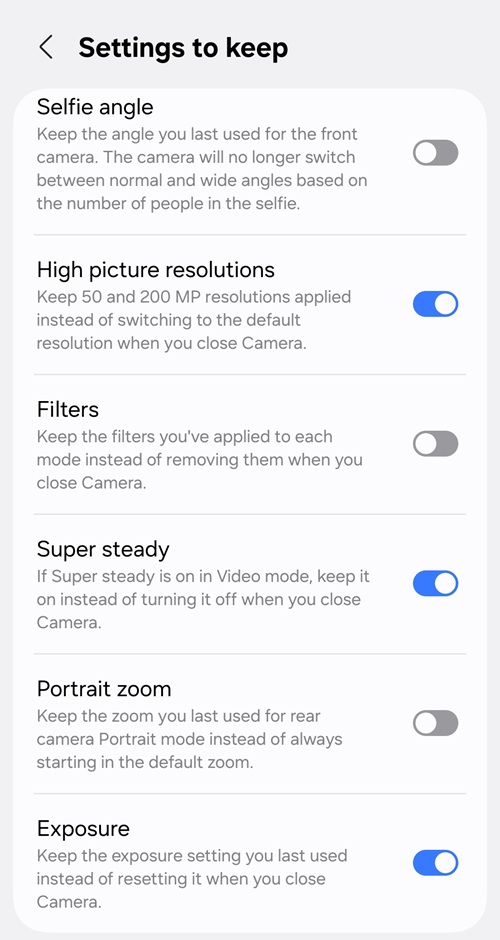
This locks in the features and settings, so you don't have to constantly enable or change them. For example, exposure will remain at -0.3 if you left it at that setting the last time you used the camera app. This ties into the next tip we have: Pro mode.
#2 Using Pro modes
Auto mode is easy to use, but the camera app's Pro mode can help you take better pictures. With Pro mode, you can adjust the camera's light sensitivity (ISO), exposure, colour temperature (WB - White Balance), shutter speed, and the focus mode.
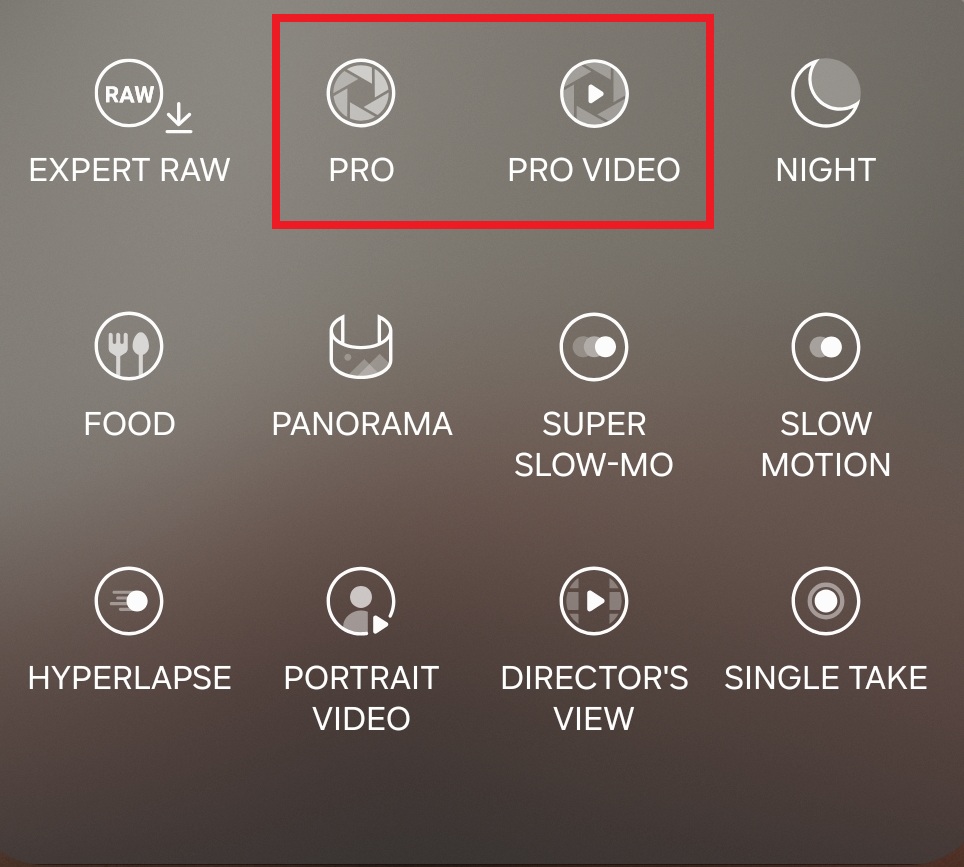
Moreover, Pro mode allows you to capture in RAW format, which typically results in photos that don't look overly digital-processed. RAW format also keeps more data from the sensor, allowing you to edit your photos using a photo editing app or your PC.
For even more control, you can download and use the Expert RAW mode. This mode essentially optimises the camera app's UI for Pro mode users, putting the advanced controls front and centre. It also enables the Night Sky and Night Long Exposure features, which you can use to capture some amazing night scenes.
#3 Choosing resolutions
As you know, you can choose the resolution of photos taken with the camera app. For the Galaxy S25 series devices, the higher resolutions usually perform better in bright conditions. This is why we suggested making "High picture resolutions" the default camera resolution.
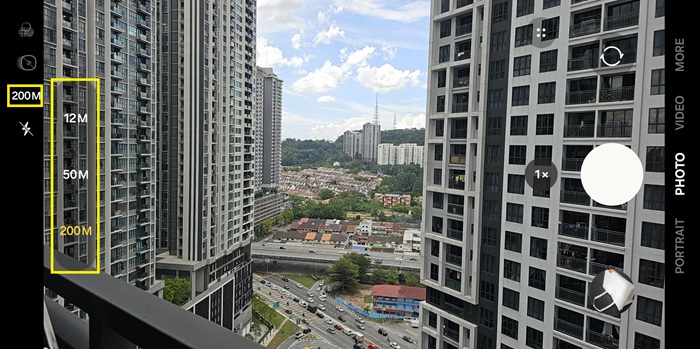
On a Galaxy S25 Ultra, you can snap photos with the 200MP and then crop out the 'part' you want. The result should still look sharp and clear, as the higher resolution retains much more detail. 12MP is sufficient for taking still shots in low-light conditions. It keeps photo file sizes smaller, which is more convenient for uploading to social media.
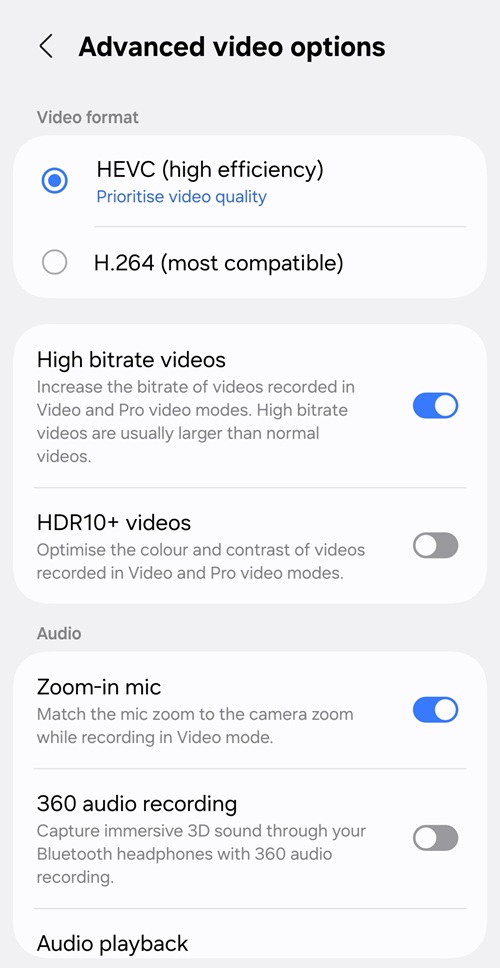
#4 High video bitrate
For videos, we suggest enabling "High bitrate videos" in the settings. If your device has Video Pro mode, Log mode is another option if you want to post-edit videos. By the way, you may also want to disable HDR mode if you plan to record in Log mode.
Experiment constantly
Flagship-level devices, like the Samsung Galaxy S25 series smartphones, are more than capable of delivering high-quality photos, so you don't have to buy those bulky professional cameras to take better ones.
Of course, choosing certain settings and modes is just the beginning. There's no actual shortcut to becoming a pro in taking photos, so you'll have to take plenty of photos to find out what works best for you.
What's your preferred mode or setting when snapping photos with your smartphone? Do you have other tips on how to get a better shot? Please share them in the comments below, and stay tuned to TechNave for more articles like this.



COMMENTS