
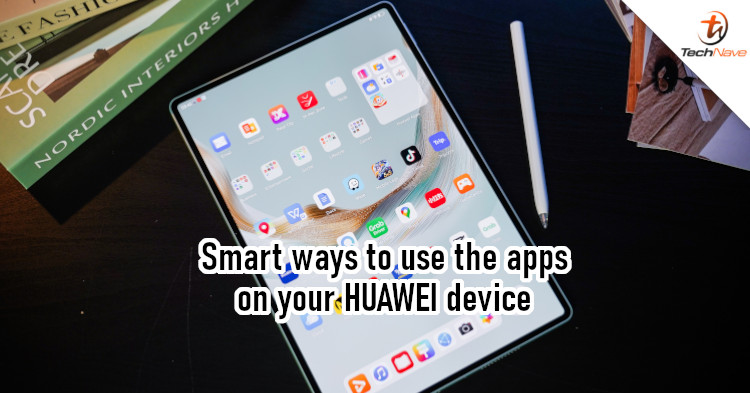
Smartphones can do so many things these days. They let us communicate, provide entertainment, and even help with work. Best of all, we can do many of these things simultaneously. Who says you have to check emails in silence? You can do it while having a video call with someone to discuss the email's content.
Flexibility is the name of the game, one that HUAWEI smartphones are great at playing. Here are some smart and easy ways to utilise everyday apps on your HUAWEI device.
Multi-Window multi-tasking
While multi-tasking used to be considered an advantage of PCs, mobile devices like HUAWEI smartphones can also do that these days. Let's say you're trying to learn a language or any topic of interest. You could watch a YouTube video that teaches you the topic while typing notes into Notepad.
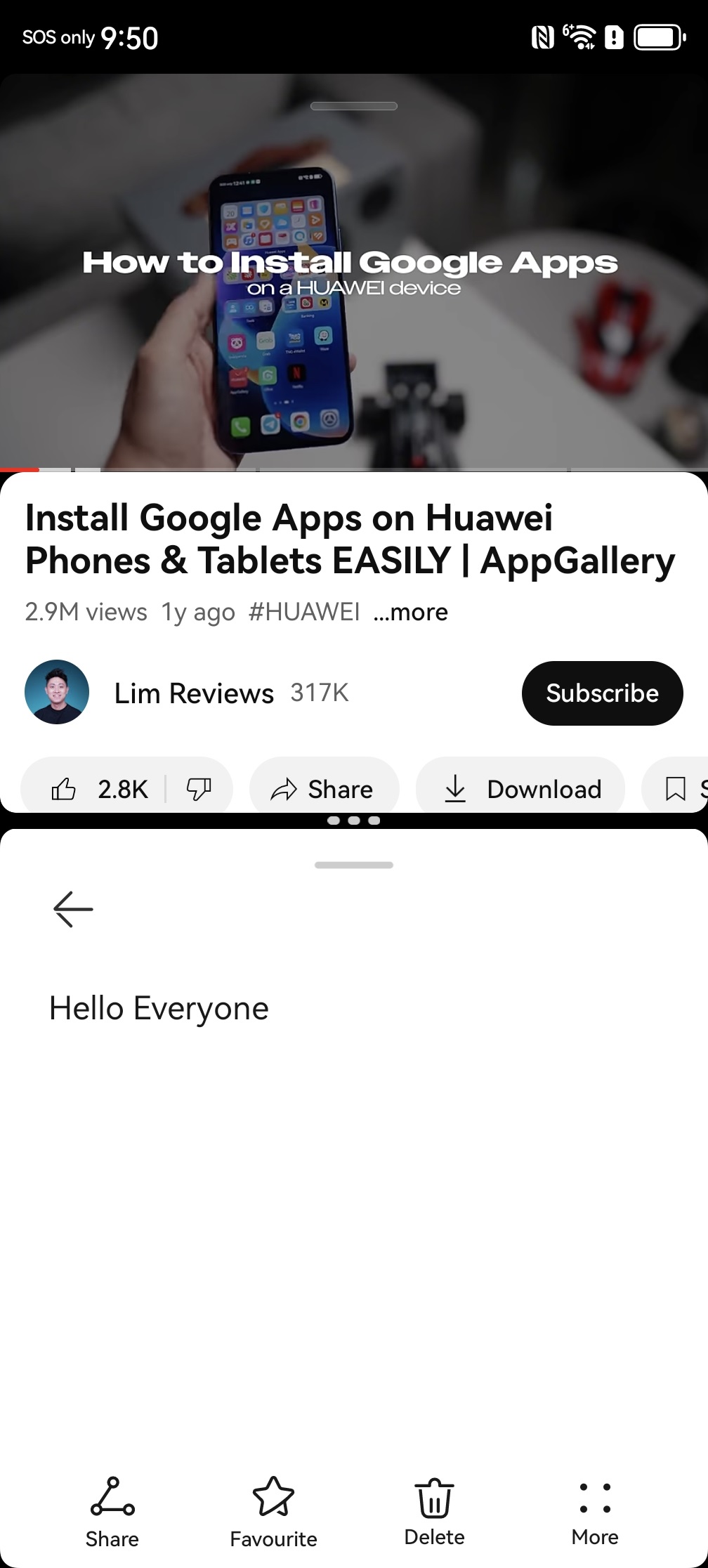
Moreover, you can use one of the larger HUAWEI Mate series foldables or a HUAWEI MatePad to make things easier. These devices often have keyboard and stylus support, which makes it easier for you to type notes, do sketches, or quickly copy content (like screenshots) from the video to your document.
To enable Multi-Window, open the first app you need (YouTube), then swipe from the screen's edge for the Smart Sidebar and drag the second app (Notepad) into split view. The split screen divider can also be adjusted.
Quick access to favourite apps
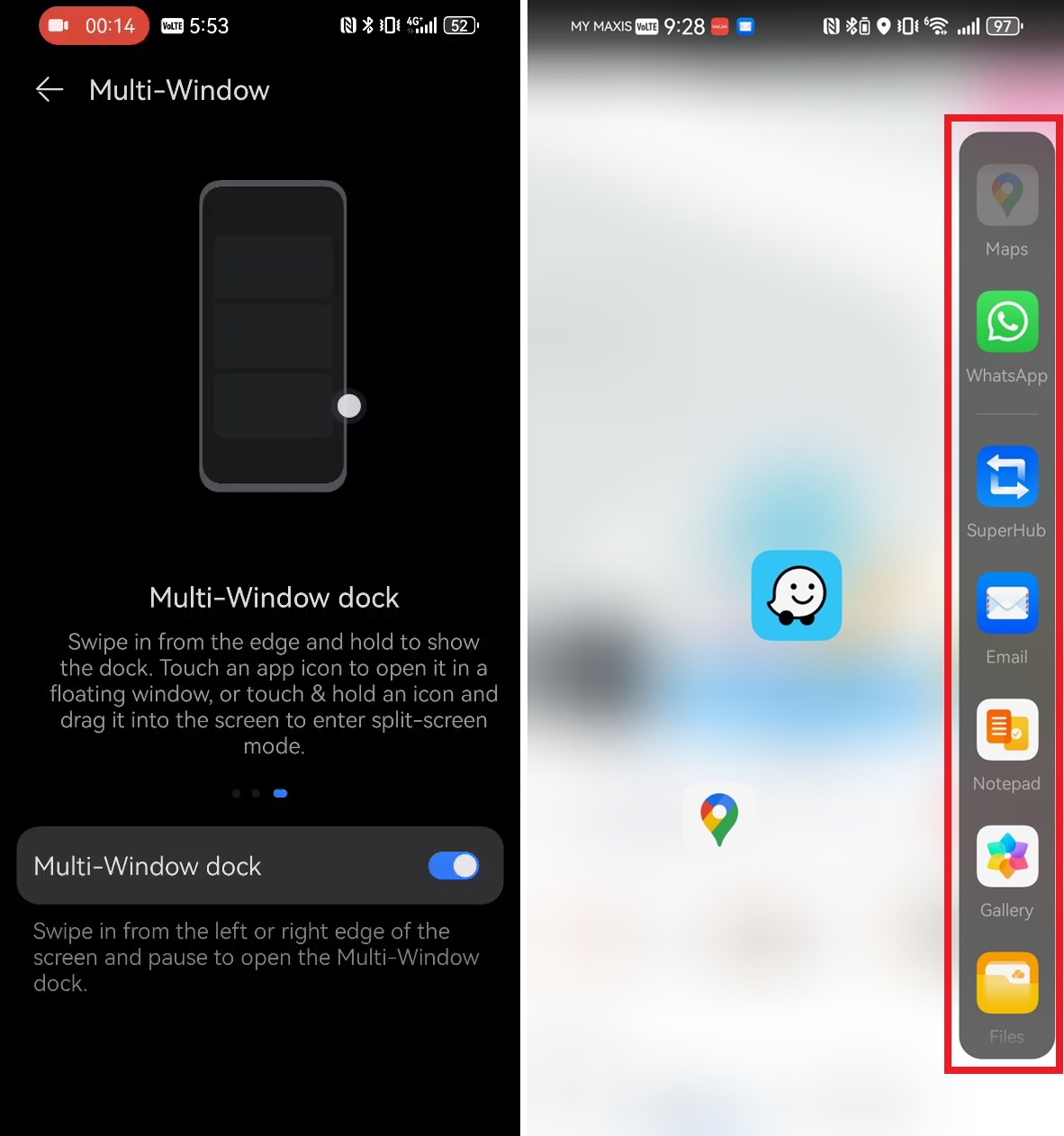
On the topic of Multi-Window, you can pin any favourite app to the dock for easier access. Go to Settings, tap on "Smart Sidebar" and then select the app to pin. For instance, you can pin TikTok, Maybank MAE, TNG eWallet, and more.
Watch videos while sending messages
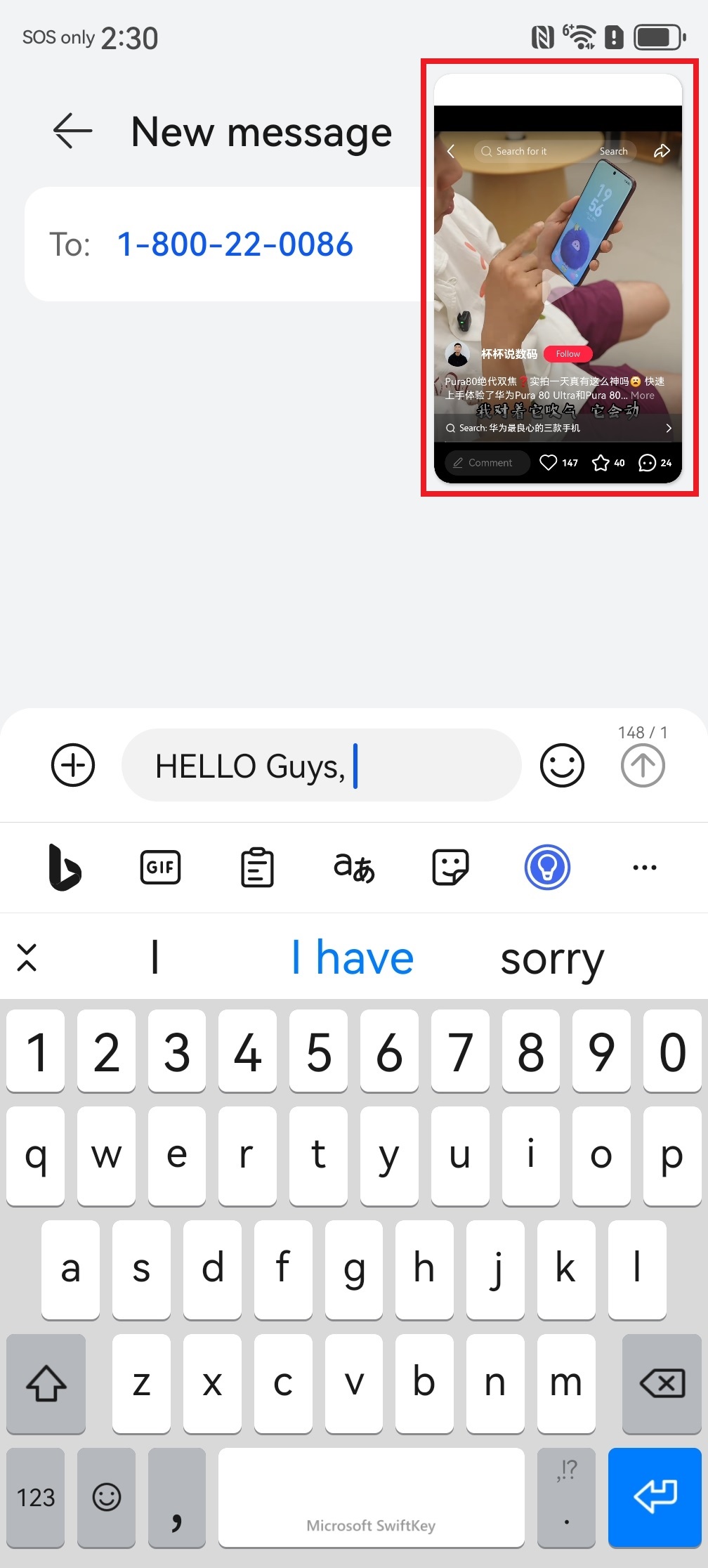
Watching an interesting video, but suddenly receive a message? You don't even need to pause the video; just shuffle it to the side while you type a reply. The video will still be playing, albeit in a smaller window. This works with any app that supports Picture-in-Picture, such as Xiaohongshu (RedNote) and YouTube. Mind you, some apps (like YouTube) may require a Premium subscription.
Productivity with WPS
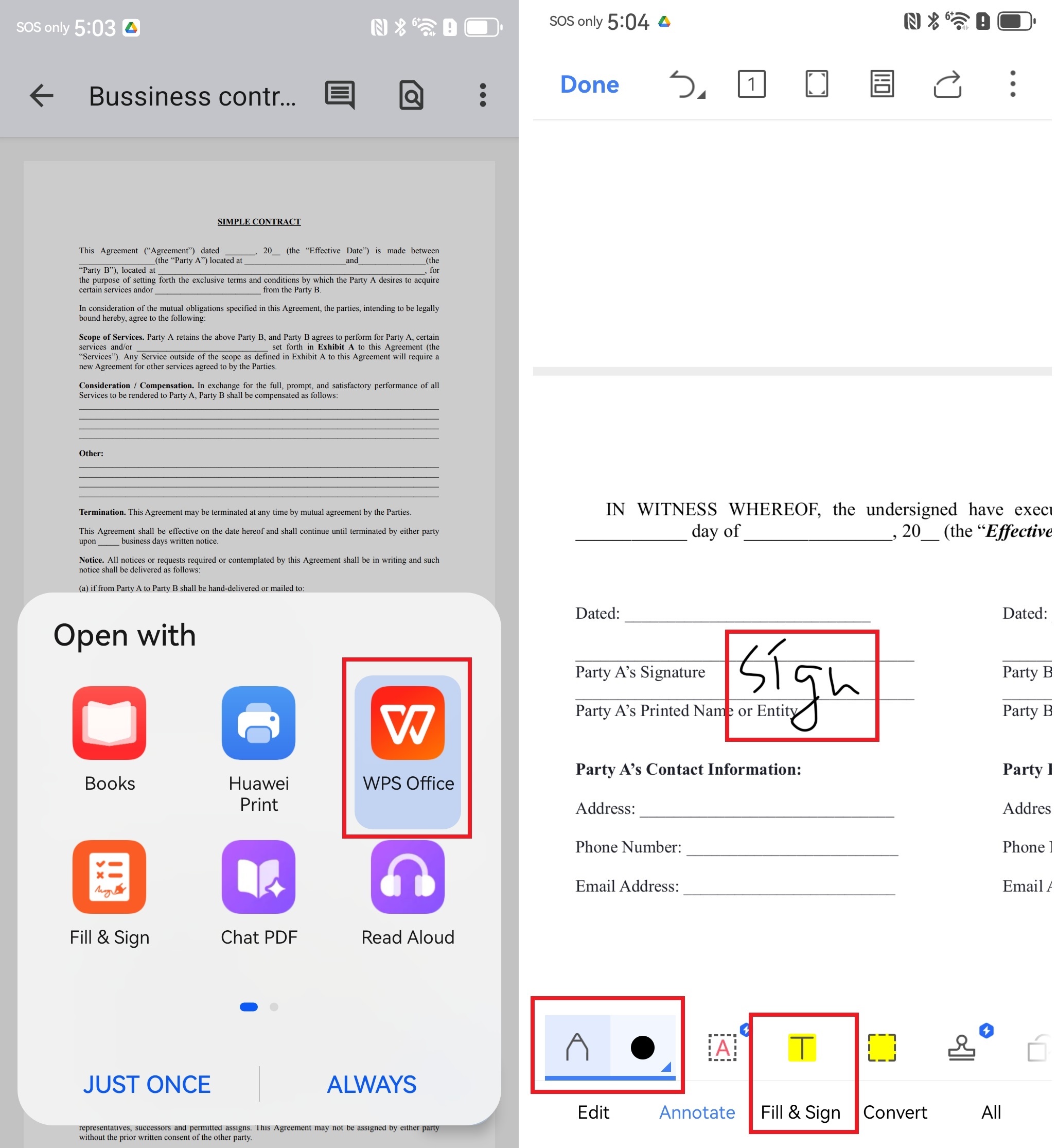
How about if you received a form requiring your signature, but you don't have a scanner? No problem, this is easy on a HUAWEI MatePad series tablet. All you need to do is open the file in WPS Office, use the "Annotate" or "Fill & Sign" feature, and add your signature. Remember to use a stylus, as it would make your signature look cleaner (unless you have bad handwriting!)
Easy app updates
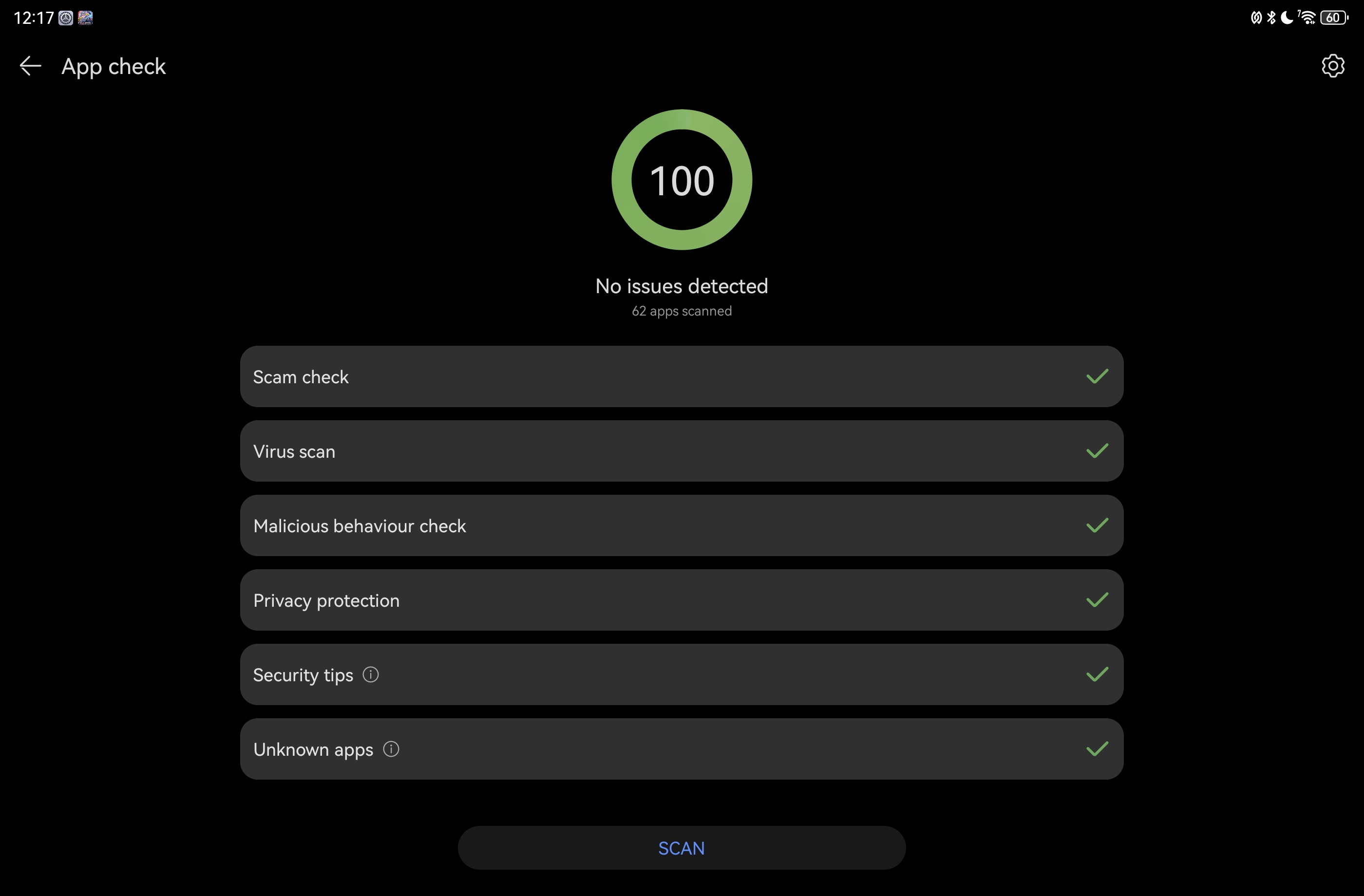
Updating your apps is important since it can give you access to new features, bug fixes, and performance optimisations. The HUAWEI AppGallery is great in that sense because it makes the process seamless. Thanks to its security checks, AppGallery also ensures that the app you download is safe for use. You can also perform manual security checks to ensure your device remains protected.
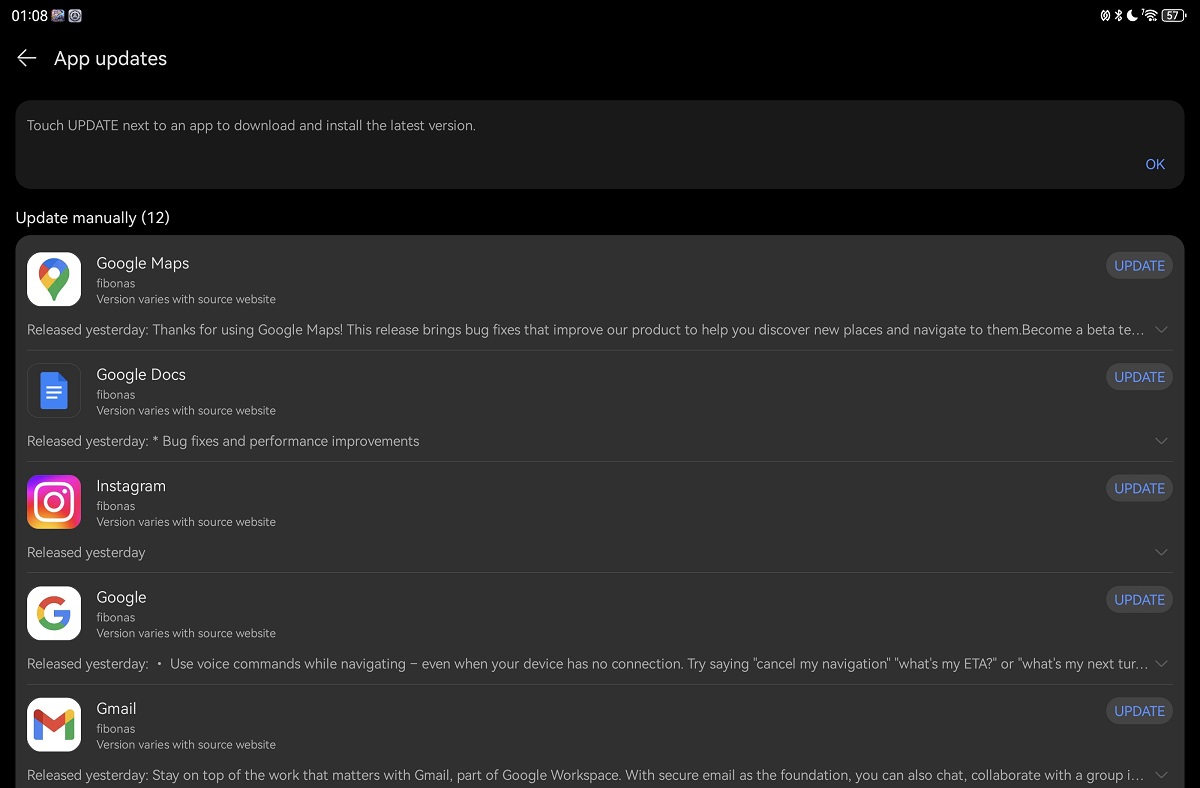
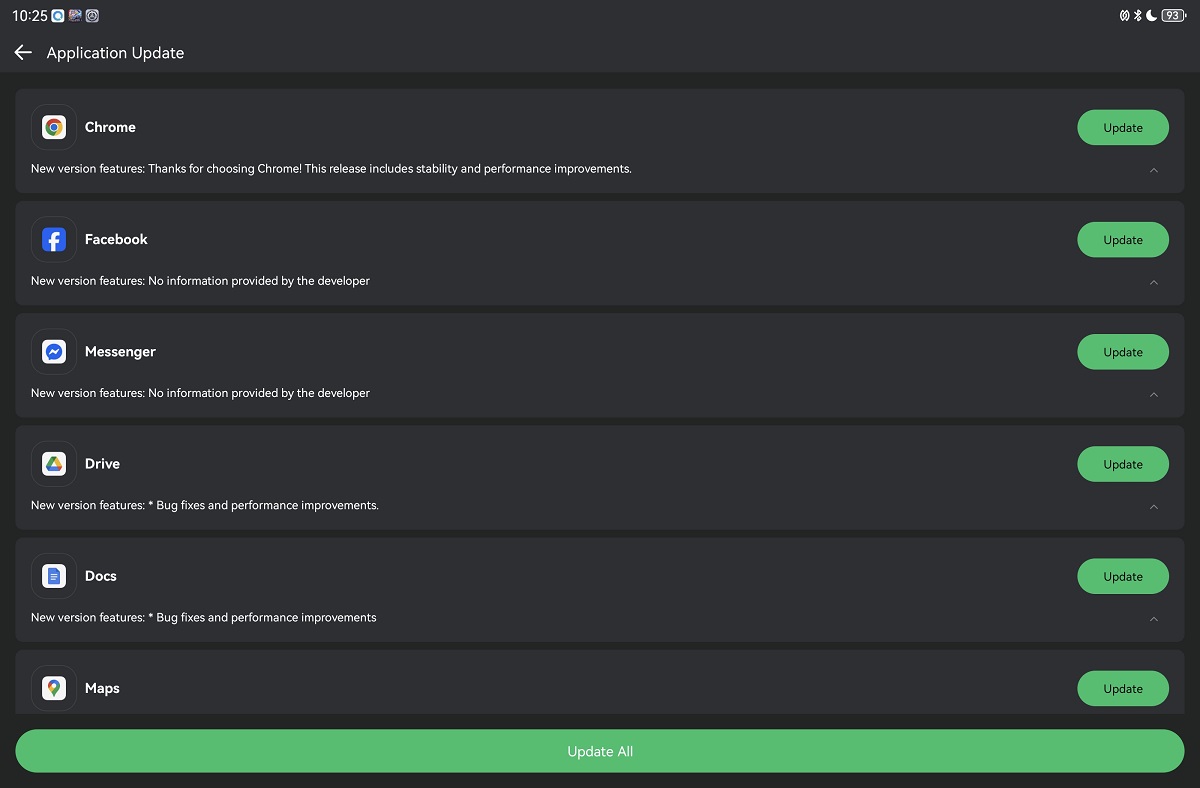
To update your apps, go to the AppGallery and tap on the 'Me' tab. Next, tap on 'App Updates' to check the list of updatable apps. Here, you can manually select which apps you want to update. But it's faster to just tap on 'Update All' to update all your apps.
Accessibility with AppGallery
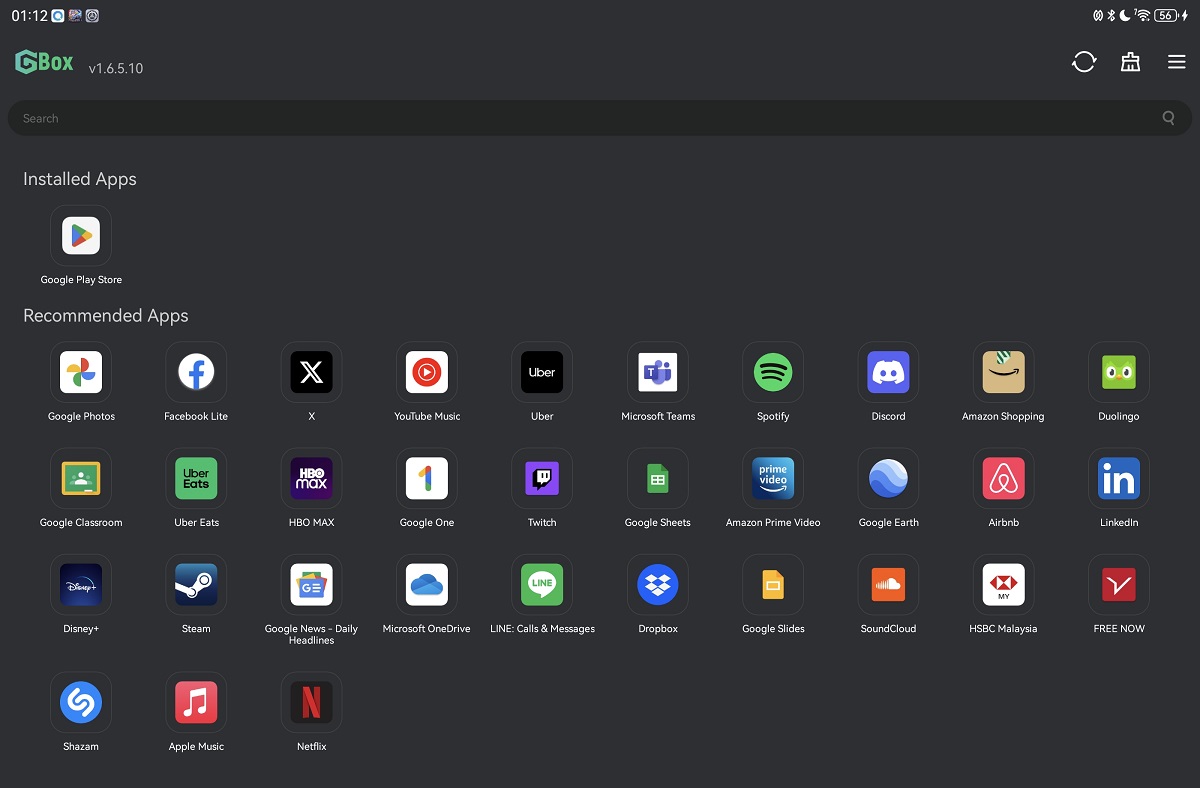
HUAWEI has come a long way in establishing an independent app ecosystem. It now has more apps, especially local ones, so it's not too different from a typical Android phone. You can even sideload Google Apps if you want to. And if you have any problems, just contact the Customer Service Hotline (1800 22 0086) for assistance. To see what else the AppGallery has to offer, check on your HUAWEI device or visit https://appgallery.huawei.com.
Do you have other smart ways to use apps on your device? Please share them with us on our Facebook page! And as always, stay tuned to TechNave for more articles like this.

COMMENTS