

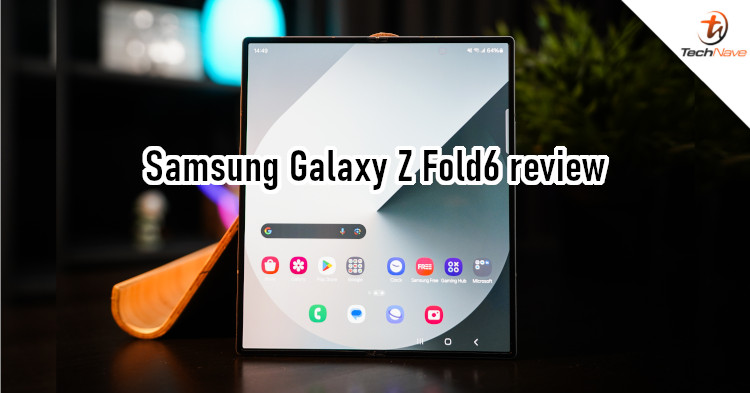
Need a concept design or model but don't have the talent for art? Or maybe you're trying to encourage your kid to learn art and want to entertain them with something cool. No problem, the Samsung Galaxy Z Fold6 has an option to do just that - Galaxy AI Sketch to Image.
In case you didn't know, Sketch to Image is part of the Drawing assist feature. As the name implies, it lets you transform simple sketches into an image via Galaxy AI. This makes it particularly useful in Samsung devices with S Pen support, such as the Samsung Galaxy Z Fold6 foldable smartphone.
In this article, we'll be giving you an overview of how to enable Drawing Assist and use Sketch to Image.
Setting up Drawing assist
- Go to the settings and tap on Galaxy AI
- Scroll down for Drawing assist and tap on it
- Toggle the switch to 'On' to enable Drawing assist
- Now you can use Sketch to image in the Samsung Gallery or Samsung Notes


How to use Sketch to image
With that done, the device can now generate images using your sketches. But how does it work? Say you want to add an object or animal to a photo. You select the photo in the Samsung Gallery, tap the Galaxy AI icon (the one with the stars), and then tap on Sketch to image. Now you can draw something on the photo and Galaxy AI will generate an image based on that.
You can also generate images in Samsung Notes. First, open a new note and draw on the blank. Next, tap on the Galaxy AI icon, select Sketch to image, and highlight the sketch you've made. Finally, pick a 'style' using the menu and tap generate for your desired image. Once generated, you can copy the image and add it to an existing note.


Sketch to image in action (via Samsung Notes)
Enabling Sketch to Image for Edge panels
Besides the Gallery and Samsung Notes, Sketch to Image can also be accessed via the Edge panels. Here's how:
- Go to the settings and tap on Display
- Select Edge panels and toggle the switch to 'On'
- Make sure 'Apps' is selected and the Sketch to image app is included
- Done. Now you can swipe left from the Edge panels on the phone screen and start sketching


You can access the feature via the Edge panels
In a nutshell, Sketch to Image is useful for people with no professional drawing skills. It's great because you can quickly spice up your photos or add illustrations to your lecture notes with little to no effort. Of course, there are many other ways you can use this feature, so make sure to explore them.
Currently, Sketch to Image is available via the Samsung Galaxy Z Fold6. Please visit the Samsung Malaysia website for more details about this phone. And for more articles like this, stay tuned to TechNave.com.



COMMENTS