
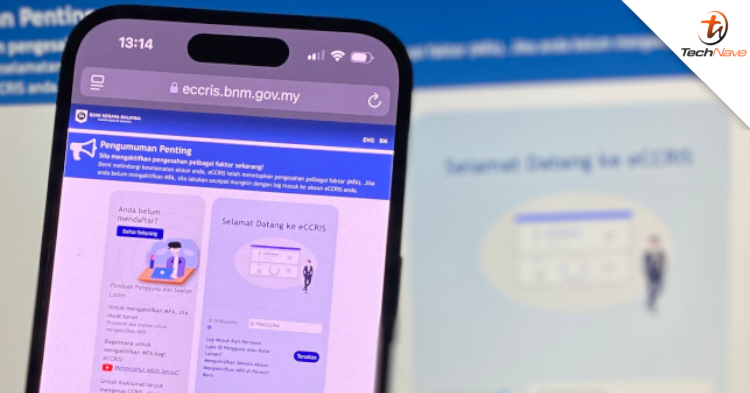
Bank Negara Malaysia (BNM) recently announced that the Quick Response Time Based One-Time Password (QR TOTP) will replace SMS OTP for eCCRIS account login purposes, effective 18 October 2024. So, what should you know about it?
For your information, this is a welcomed addition for everyone. The step is quite simple and convenient. To receive QR TOTP and log in to eCCRIS, requires the following prerequisites:
- Mobile devices running Android version 6.0 or iOS 4 and above OR
- Microsoft Windows 10 or later version, which uses Google Chrome, Microsoft Edge or Mozilla Firefox browser with version 125 and above
- Download a mobile authenticator app (such as Google Authenticator, Microsoft Authenticator, etc.).
Once you have met these prerequisites, follow the steps below to activate QR TOTP. Before that, be aware that the instructions for activating Multi-Factor Authentication (MFA) may vary depending on the authenticator application.
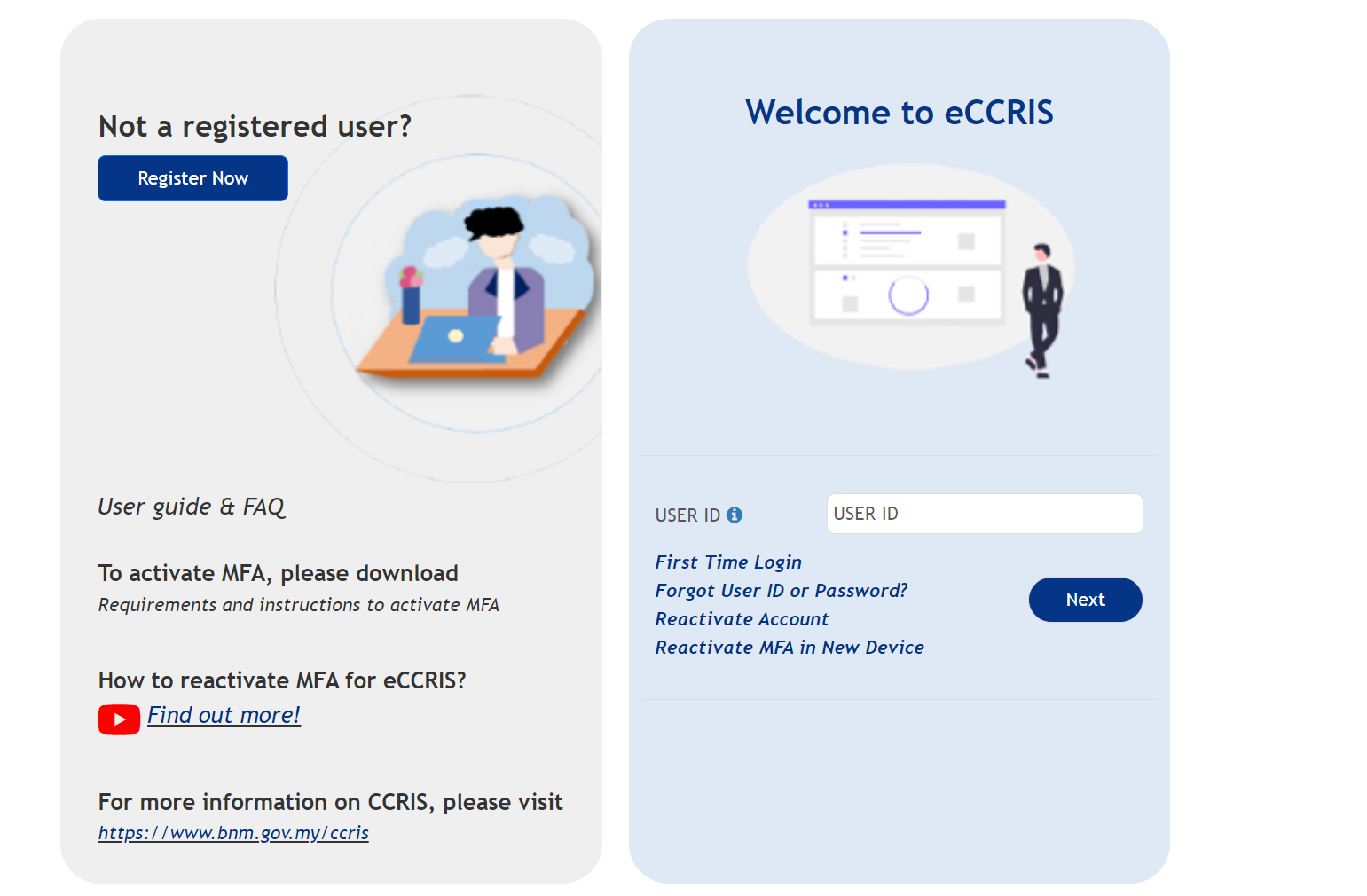
Here are the steps to activate the QR TOTP to log in to the eCCRIS account, using a mobile device and the authenticator application Google Authenticator (download at Google Play Store, Apple App Store):
- Open the eCCRIS portal and click on "Activating MFA on a New Device"
- Next, enter "User ID" and click "Continue".
- Confirm the image and security phrase, then enter password > Login.
- At the top, click on the green underlined text "Activating MFA" and a QR code will be displayed.
- Open the Google Authenticator app and scan the QR code. If it cannot be scanned, enter the code shown in the example above, into Google Authenticator to bind it to the eCCRIS account. Fill in the code in the "Your Key" section, while "Account name" can be placed like eCCRIS or related.
- After successfully adding the account to the authenticator application, open the authenticator application account. Copy the code displayed on Google Authenticator and fill in the QR TOTP field on the eCCRIS portal.
For the next process, perform step 6 every time the system asks for QR TOTP when logging in to eCCRIS. However, it should be noted that the TOTP QR code has a period and users will be given a new code after the period expires. Make sure you enter the latest QR TOTP during the eCCRIS login.
And there you go! If you have more questions or concerns, you can always check out the official website here.
What are your thoughts about this news? Stay tuned for more news and updates like this at TechNave!
COMMENTS